December Adventure Day 15
Psion Emulation and Python Curses
Day 15 of my December Adventure started with a request from Tom for some Psion Series 3 assets for OpoLua. Since I don’t have a Series 3 to hand here in Hawai'i, this seemed like the perfect excuse to remind myself how to fire-up an emulator using MAME and focus on, ‘write about MAME emulation’, from my original list of adventuring possibilities.
Psion Emulation

MAME includes many Psion hardware and language variants
The Psion emulation story in MAME is really impressive, but I don’t find the MAME launcher works well for standalone computers—it’s really designed for launching individual games. Instead, I run specific emulators from the command line. For example, I launch the Series 3a emulator as follows:
mame \
    -window \
    -nomaximize \
    -skip_gameinfo \
    -rompath ~/Software/Psion/ROMs \
    -prescale 2 \
    -resolution 960x320 \
    psion3a
There’s a few notable options in there which—in my opinion—really help the Psion emulation shine:
-skip_ganeminfo—don’t show unnecessary dialogs-nomaximize—run in windowed mode—I prefer this as the Psions have fairly unusual aspect resolutions-prescale 2—enable pixel-doubling for high-resolution displays-resolution 960x320—coupled with pixel-doubling, this ensures the emulation displays at exactly 2x for crisp pixels
There’s also some useful keyboard shortcuts to be aware of. These vary from device to device. For the Series 3a, they look like this:
| Device Key | Shortcut |
|---|---|
| On (Esc) | Esc |
| Off (Psion + Esc) | Alt (Opt on macOS) + 1 |
| Psion | Alt (Opt on macOS) |
| Help | F10 |
| Menu | F11 (Shift + F11 on macOS) |
| System | F1 |
| Data | F2 |
| Word | F3 |
| Agenda | F4 |
| Time | F5 |
| World | F6 |
| Calc | F7 |
| Sheet | F8 |
A Custom Launcher
Needless to say, I find myself looking up the MAME command line and keyboard shortcuts every time I need to use an emulator. I’ve written a number of shell scripts and aliases to help1, but there are so many device variants that this approach gets unwieldy pretty. Finding ROMs can also be challenging—most are available in explit28/Psion-ROM where we’re trying to dump, document, and preserve everything we can find, but it’s currently incomplete.
With that in mind, I decided to finally bite the bullet and start writing my own launcher. The goal here is to clearly present all the different device types and variants to help folks see what’s available. I’d also like to add support for automatically downloading ROMs in the future.
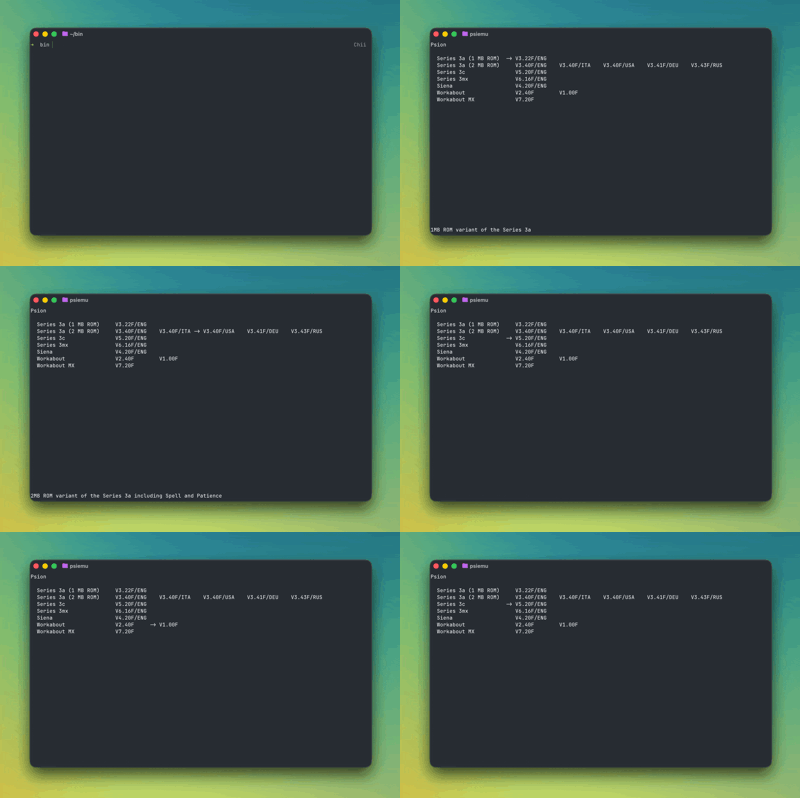
I’m using Python and Curses to create this to ensure I’ve something instantly cross-platform, as I know most of the Psion community choose to use Linux.
It’s been a really fun experience so far, playing around with writing an interactive terminal UI and seeing future possibilities. I’ve opted for a grid-layout to show devices and variants2, and I’ve realized I can add contextual footers showing additional device details and, ultimately, interactive pickers for configuring attached SSDs, serial ports, etc.
I hope to publish this nascent launcher over the coming days. 🚀
-
If you’re using Linux, you can also create desktop entries for quickly launching each Psion emulators. ↩
For example, to create a local Series 3a desktop entry, create
.local/share/applications/psion-series-3a.desktopcontaining something like:[Desktop Entry] Type=Application Version=1.0 Name=Psion Series 3a Path=/home/parallels Exec=/usr/bin/mame -window -nomaximize -skip_gameinfo -rompath /home/parallels/Software/Psion/ROMs -prescale 2 -resolution 960x320 psion3a Terminal=false -
Perhaps I was influenced by Matt Sephton’s notes on using spreadsheets for UI design. ↩